Image Blur
Apply Gaussian blur or pixelate effect to images
Upload Image
Drag & drop or click to select
Blurring or pixelating an image
Photos often reveal more than intended — text on a document in the background, an address on a parcel label, a bystander's face. This tool loads an image and applies one of two treatments: a Gaussian blur, which softens edges into a natural-looking smear, or pixelation, which replaces the area with coarse blocks and makes it obvious that something was deliberately hidden.
A slider controls the blur radius for Gaussian blur and the block size for pixelation. Higher values hide more. Be wary of settings that look strong at a glance but are not — pixelation in particular can leave text readable if the blocks are too small. When the goal is to protect personal information, increase the strength until the original content is completely unrecognisable before exporting.
Loading, processing and downloading all happen inside your browser, so the photo is never uploaded. That is exactly what you want for pictures containing people or screenshots of internal documents — the images you would rather not hand to a web service in the first place.
Frequently asked questions
- Should I use blur or pixelation?
- Gaussian blur looks more natural; pixelation makes it visually obvious that something was redacted. Either works for hiding information, provided the strength is high enough.
- Can I blur only part of the image?
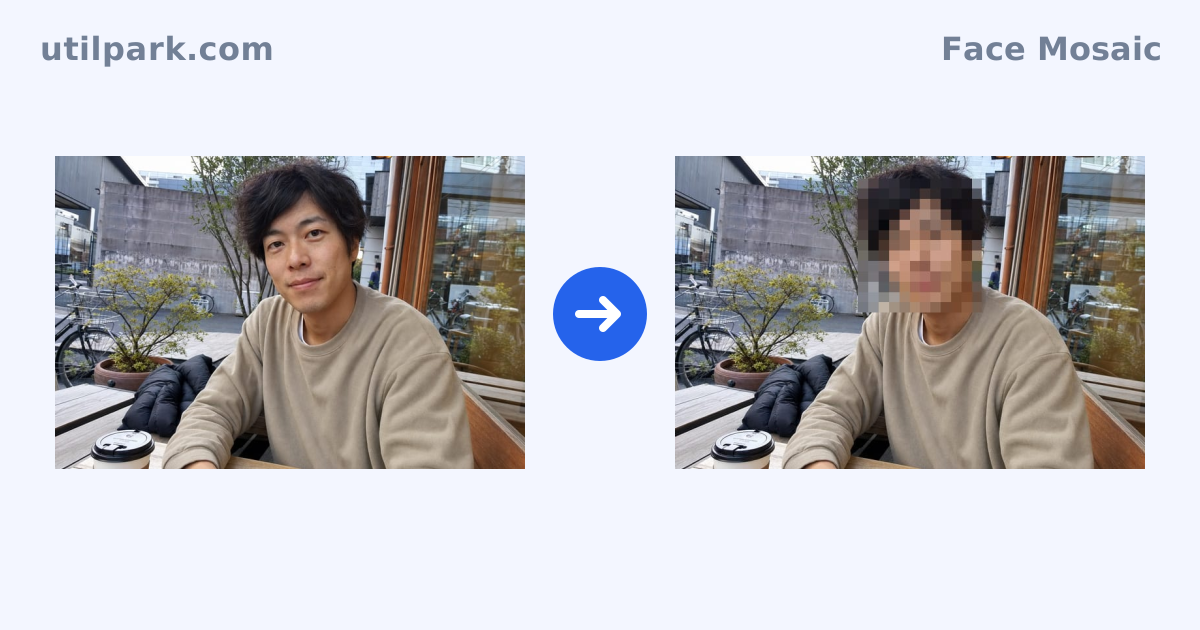
- This tool applies the effect to the whole image. To hide only faces, use the face mosaic tool, which detects faces and pixelates them individually.
- Can the original be recovered from the exported image?
- The exported file contains only the processed pixels, so the original cannot be restored. A weak setting can still let a viewer guess the content, however.
- Is my photo uploaded?
- No. Loading and processing both happen in your browser and the image is never sent to a server.